Add an AI Chatbot to My Website

Sara Williams
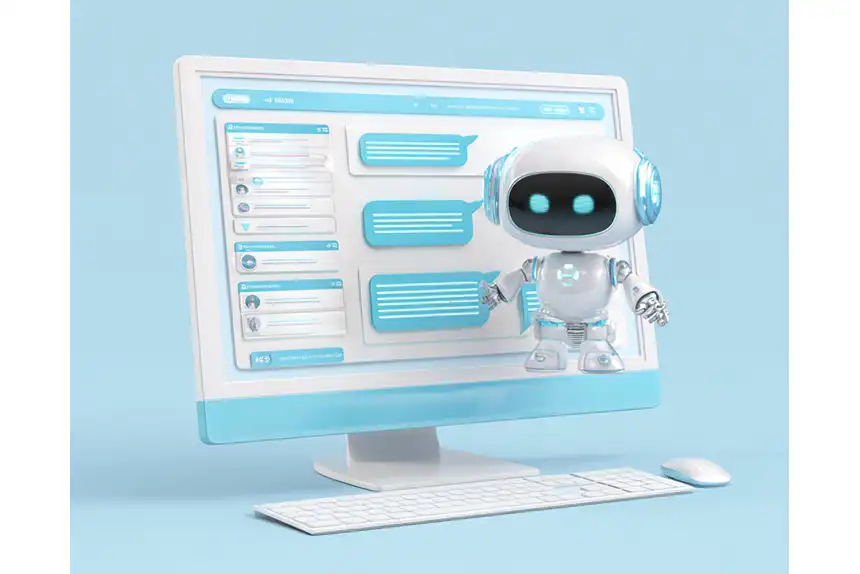
If you’re looking to add an AI chatbot to your website, you’re probably not looking for theory or chatbot history. You want something practical, fast, and reliable—something you can deploy on your site without rebuilding it or risking your brand.
This guide shows exactly how to add a custom AI chatbot to any website using CrafterQ, an enterprise-grade AI agent platform designed for real-world production websites.
If you’re looking for a more general overview of chat widgets and options, see: How to Add Chat to Your Website.
This article is different. It’s the step-by-step, production-ready approach.
What “Add an AI Chatbot to My Website” Really Means Today
For most businesses, adding an AI chatbot does not mean:
- A scripted decision tree
- A generic ChatGPT embed
- A “set it and forget it” widget
What people actually want is:
- A chatbot trained on their own content
- Accurate, brand-safe answers
- No hallucinations
- Works with any website or CMS
- Visibility into what visitors are asking, and not finding
- Continuous learning, fine-tuning and optimization
That’s exactly what CrafterQ is built for.
What Makes a CrafterQ Chatbot Truly Custom
CrafterQ is not just a UI widget; it’s a website AI agent.
Each chatbot can be customized across multiple layers:
- Your data only (websites, documents, Q&A, text)
- Hybrid RAG (vector + keyword search for higher accuracy)
- Deterministic Q&A for exact answers when precision matters
- Configurable guardrails and behavior
- Fully white-labeled UI
- Enterprise-grade security and auditability (including SOC 2 compliance)
Once live, your chatbot speaks for your business, not a generic LLM.
How to Add a CrafterQ AI Chatbot to Any Website
Step 1: Create Your CrafterQ Workspace
Start by creating a CrafterQ account and your first workspace.
A workspace is the top-level container in CrafterQ. It’s used to manage:
- One or more AI agents
- Access controls and permissions
- Data ownership and isolation
Inside a workspace, each AI Agent is configured independently.
How the Model Works
- Workspace
- One or more AI Agents
- Each AI Agent can be trained on:
- One or more websites (and their URLs, sitemaps, etc.)
- Multiple documents (PDFs, manuals, guides, specs)
- Multiple Text sources
- Multiple Q&A sources
This structure lets you:
- Run different agents for different sites or use cases
- Isolate data between brands, products, departments or teams
- Cleanly support agency or multi-tenant scenarios
The workspace gives you organizational control. AI agents give you content and behavior control.
Step 2: Create Your AI Agent
Next, create a new AI Agent inside your workspace.
This defines:
- The agent’s role and purpose
- Tone and response style
- Agent instructions and guardrails
Think of this as defining how your website should talk to visitors.
Step 3: Connect Your Content Sources
This is where CrafterQ differs from most chatbot tools.
An AI agent can be trained on multiple source types, all at once:
Website Sources
Website sources allow CrafterQ to crawl and index:
- Entire websites
- Specific sections or URL paths
- Public-facing content that changes over time
CrafterQ automatically:
- Follows internal links
- Indexes linked files (PDFs, docs, etc.)
- Re-indexes content when pages change
Ideal for:
- Business websites
- Marketing sites
- E-commerce sites
- Documentation portals
- Tech support and help centers
- Product pages
Document Sources
Document sources let you upload and manage:
- PDFs
- Word documents
- Manuals and technical specs
- Policies and internal docs
These are treated as first-class knowledge sources and can be updated independently of your website.
Ideal for:
- Product documentation
- Legal and compliance content
- Sales enablement materials
- Internal knowledge bases
Step 4: Control Accuracy with Text vs Q&A Sources
CrafterQ gives you fine-grained control over how answers are produced, not just what content is indexed.
Text Sources (Contextual Answers)
Text sources are used for contextual, RAG-based responses.
They work best for:
- Explanatory content
- Narrative descriptions
- “Tell me about…” questions
- Broad or exploratory queries
- Content that is missing from your website (and may be published in the future)
CrafterQ uses hybrid retrieval (vector + keyword) to locate the most relevant passages and generate accurate, context-aware answers.
Q&A Sources (Deterministic Answers)
Q&A sources are used when precision matters.
Each Q&A entry maps:
- One or more specific questions
- To a single, authoritative answer
If a visitor’s question matches a Q&A entry:
➡️ the answer is returned directly, not generated.
This is ideal for:
- Pricing and packaging
- Product capabilities
- Legal language
- Compliance statements
- Guarantees and policies
This approach eliminates ambiguity and ensures exact wording where accuracy is critical.
Step 5: Customize the Chat Experience
CrafterQ gives you full control over the chatbot UI and behavior:
- Branding, colors, and styling
- Widget placement and behavior
- Greeting messages
- Conversation starters
- Embedded or floating UI
The result feels like a native part of your website, not a third-party add-on.
Step 6: Embed the Chatbot on Your Website
Once your agent is configured, CrafterQ provides a lightweight embed snippet.
You can add it to:
- Any CMS (WordPress, Drupal, Webflow, Adobe AEM, Sitecore, Optimizely, Wix, Squarespace, CrafterCMS, etc.)
- Static websites
- SPA frameworks
- Custom applications
No backend changes required. In most cases, this is a simple copy-and-paste.
Step 7: Monitor, Learn, and Improve
This is where the long-term value shows up.
CrafterQ provides:
- Full chat logs
- Question and usage analytics
- Source attribution
- Insight into what visitors expected to find
Most visitors will never email you. They’ll just leave.
Your CrafterQ AI console and dashboard shows you:
- What confused them
- What content is missing
- Where your site is unclear or incomplete
Common Questions
Can I add this to an existing website?
Yes. CrafterQ works with existing sites—no redesign required.
Is this safe for enterprise websites?
Yes. CrafterQ is data-bounded, auditable, and built with enterprise security in mind.
Will the chatbot hallucinate answers?
No. If the answer is not in your sources, CrafterQ does not invent one.
Can I run multiple chatbots?
Yes. You can run multiple AI agents across multiple websites from a single platform.
Why CrafterQ Instead of a Generic AI Chatbot?
Most chatbot tools stop at:
- A widget
- A prompt
- Minimal visibility or control
CrafterQ is built for:
- Production websites
- Enterprise content
- Ongoing optimization
- Long-term accuracy and trust
It’s not just about adding chat. It’s about adding intelligent conversations to your website.
Ready to Add a Custom AI Chatbot to Your Website?
If you’re ready to deploy an AI chatbot that:
- Uses your data
- Reflects your brand
- Improves over time
CrafterQ is built for exactly that.