AI Agents
The Agents section is where you manage all of your CrafterQ agents — from their configuration and connected data sources to testing, usage, and deployment.
Clicking on the Agents menu item will give you a list of your agents. From here, you can click on the Create Agent button to create a new agent (assuming your Plan has unused agents available).
Creating New Agents
The Create Agent screen allows you to build a new AI agent from scratch. Here you’ll define its name, appearance, behavior, and user interface — everything needed to shape how your agent will interact with users once deployed.
When you click Create Agent from the Agents page, you’ll be asked for the following fields:
Field | Description |
|---|---|
Name | The internal name of your agent. This is how the agent will appear in your dashboard and project listings. Choose a name that clearly describes its function, such as Support Bot or Product Assistant. |
Description | An optional short description to help you identify the agent’s purpose. |
These fields define your agent’s basic information and are primarily for internal use within your organization.
Saving and Next Steps
After completing the required fields:
Click Create to create your agent.
After creating the agent, CrafterQ will take you to the Agents Create Source screen where you will be asked
What type of source do you want to create?. Choose from the following source options:Website: Allows CrafterQ to crawl and index content directly from your website or other web pages.
Field
Description
Title
A friendly name for the source (e.g., “Company Docs Site” or “Help Center”).
URL
The starting URL for the crawler (e.g., https://www.example.com/docs/). CrafterQ will automatically follow internal links from this page unless otherwise restricted.
File: Lets you upload documents directly into CrafterQ for indexing.
Use the drag-and-drop area labeled “Drop files here or browse files” to upload your content.Text: Allows you to add raw text content manually — perfect for concise policies, team FAQs, or short reference material.
Field
Description
Title
The internal name for this text source (e.g., “Return Policy”).
Content
The body text you want your agent to learn from. Paste or type any content here, such as plain text, bullet points, or short paragraphs.
Q&A: Defines one or more question-and-answer pairs that your agent can recall exactly as provided.
Field
Description
Title
A descriptive name for the Q&A group (e.g., “Pricing FAQs”).
Question(s)
One or more related questions that users might ask. You can enter multiple variations separated by new lines.
Answer
The response your agent should give for the questions listed above. This text is indexed verbatim.
Fill in the required fields then click the Save button.
Once saved, CrafterQ will take you back to the the newly created Agent’s Sources screen. From here, you can start customizing your agent from the Agents → Settings.
Note
You can edit or add any of the sources listed above later from the Agents → Sources screen.
Create Agent Summary
The Create Agent screen is the starting point for building intelligent, branded conversational experiences. By defining both internal details and sources options, you lay the foundation for your agent — ready for customizing how your agent looks, sounds, and interacts and ready for testing, training, and deployment on your digital channels.
Managing Agents
Each agent has its own set of configurable screens accessible through the sidebar menu that you’ll see after clicking on an agent listed on the Agent screen:
Tip
New to the Console? Use the Tour item in the sidebar for an overview, or click ? next to Settings or Playground for a guided walkthrough of those screens.
Usage – View chat and credit usage specific to this agent.
Chat Logs – Review past user conversations for training and quality assurance.
Settings – Configure your agent’s core parameters (identity, AI behavior, and interface).
Sources – Connect or update the data sources your agent uses for knowledge.
Playground – Interactively test your agent’s performance and tune its behavior.
Deploy Agent – Deploy or share your agent on websites and applications.
Actions – Install interactive capabilities such as lead capture and escalate to human.
Leads – View and export contact details captured by the Lead Capture action.
Usage Screen
The Usage screen provides detailed analytics on how your agent is performing over time. It helps you understand user engagement, monitor message quality, and identify geographic patterns of interaction.
All metrics on this screen reflect data for the time period selected using the calendar control at the top of the page.
Selecting a Time Period
At the top of the screen, use the date range selector to specify the time window for your usage data.
The dashboard will automatically refresh to show chat and message statistics for your selected timeframe.
1. Chat Detail Summary
This section summarizes your agent’s total activity and feedback within the chosen period.
Metric | Description |
|---|---|
Chats | The total number of chat sessions initiated by users, shown along with the number of countries where they originated. |
Messages | The total number of messages exchanged between users and your agent during the selected timeframe. This includes both user messages and AI responses. |
Thumbs Up | The number of agent messages that users rated positively. This indicates user satisfaction and helps assess agent quality. |
Thumbs Down | The number of agent messages that users rated negatively. Use this to identify responses that need improvement or retraining. |
Pro Tip
A high ratio of chats to thumbs-up feedback suggests users are engaging frequently but not rating responses — consider prompting for feedback in your Agent Instructions.
2. Chats Started (Line Graph)
Below the summary metrics, a line graph visualizes the number of chat sessions started per day during the selected period.
Use this chart to:
Identify daily or weekly engagement trends.
Measure how product launches, content updates, or campaigns impact chat volume.
Spot peaks or drops that may indicate seasonal changes or performance issues.
Hovering over a data point shows:
Date
Number of chats started on that day
Example: You might see a spike of 15 chats on October 12 following a new website update, indicating higher user interest or discovery.
3. Chats by Country (Global Map)
This interactive world map shows where your chats are coming from, with countries shaded according to their chat volume.
The darker the color, the higher the engagement from that region.
How to use:
Hover over any country to view the exact number of chats and percentage of total sessions.
Use this data to identify where your audience is most active.
Combine with chat language settings to localize responses or add multilingual agents.
Example: If you see most chats originating from the U.S. and Germany, you might consider training your agent on support content for those markets (the agent will automatically translate the language for its responses based on the language of user queries.
4. Insights and Next Steps
Regularly reviewing your Usage screen helps you:
Track agent adoption and engagement growth.
Identify underperforming regions or timeframes.
Evaluate the quality of interactions using user feedback metrics.
Next Steps:
Visit the Chat Logs screen to view individual conversations and assess specific responses.
Revisit the Sources or AI Settings screens to retrain or fine-tune your agent based on insights from usage data.
Chat Logs Screen
The Chat Logs screen provides a detailed record of all conversations between users and your agent. Use this screen to review real user interactions, understand how your agent is performing in the field, and identify areas where responses can be improved.
Overview
Each chat session is automatically logged by CrafterQ and displayed in a searchable, filterable list.
Logs include key information such as:
The date and time of the chat
The messages exchanged
Feedback (Thumbs Up / Down) received from users
This screen is essential for training and continuous improvement — it gives you direct visibility into what your users are asking and how your agent is responding.
Selecting a Time Period
At the top of the page, use the calendar widget to choose the date range for the logs you want to view.
Once selected, the chat list will automatically update to show only the sessions that occurred within the chosen timeframe.
Filtering by Feedback
You can narrow down your logs by user feedback type, allowing you to focus on either successful or problematic interactions.
Filter options:
Show all: Displays every recorded chat session.
Contains thumbs up: Shows only chats containing messages that received positive feedback.
Contains thumbs down: Shows only chats containing messages that received negative feedback.
Contains either up or down: Shows chats containing messages that received negative or positive feedback.
Pro Tip
Use the “Thumbs Down” filter regularly to identify conversations where your agent underperformed. Reviewing these chats helps pinpoint missing data or prompt issues.
Chat Log List
Each entry in the list represents one chat session and includes the following:
Field | Description |
|---|---|
Date/Time | The timestamp when the chat session started. |
Messages | The messages exchanged in the session. |
Feedback | Displays a ✓ Helpful or x Not helpful icon if any message in that chat received feedback. If no feedback was given, nothing is shown. |
Viewing a Chat Transcript
Click the on any chat entry on the left side to open the full conversation log. Within the transcript view, you’ll see:
User messages and AI responses, displayed in chronological order.
Any feedback icons beside specific responses (✓ Helpful or x Not helpful).
Message-level metadata such as timestamps and token usage (if applicable).
Use this view to:
Analyze how well the agent understood the user’s intent.
Identify gaps in your content or training data.
Refine prompts and AI settings for improved responses.
Pro Tip
Combine feedback filtering with the transcript view to create a targeted quality review workflow — for example, reviewing only the “Thumbs Down” sessions from the past week.
You can export the currently filtered chat list as CSV for reporting, auditing, or external analytics.
Use the date range and feedback filters first, then click Export CSV at the top-right of the Chat Logs screen. The download includes the same sessions shown in the list (summary, source, last interaction time, geography, feedback flags, and action indicators).
Chat Logs Summary
The Chat Logs screen is your direct window into how users are engaging with your agent:
Use time filters to focus on recent or historical sessions.
Use feedback filters to identify high- or low-performing conversations.
Export CSV of the filtered list for external analysis.
Review transcripts to guide prompt updates and retraining decisions.
Next Steps
After reviewing chat logs:
Visit the Sources screen to add or refine data for poorly answered questions.
Adjust your Agent Instructions or Expressiveness in AI Settings to improve tone or precision.
Re-test improvements in the Playground before redeploying.
Settings Screen
The Settings screen defines your agent’s personality, configuration, and user experience. It is divided into three main sections:
General
User Interface
AI Settings
Security
Preview
Each section controls a different aspect of how your agent operates and interacts with users.
1. General
This section defines the basic information used to identify and describe your agent within CrafterQ.
Field | Description |
|---|---|
Name | The internal name for your agent, not to be confused with the display name. This appears in the Dashboard, Playground, and Deploy interfaces. |
Description | A short summary of the agent’s purpose. This is for internal use to help your team distinguish between multiple agents. |
Enabled | Allows you to enable/disable the agent. |
Pro Tip
Use clear, descriptive names if you manage multiple agents — e.g., “Website Chatbot – English,” “E-Commerce Assistant,” etc.
2. User Interface
These controls customize the look and feel of your chat experience, ensuring the agent matches your brand and provides a user-friendly interaction.
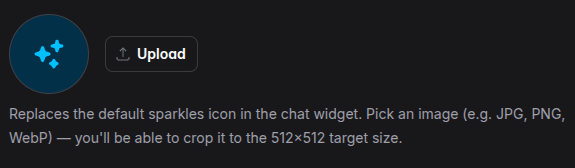
The Avatar control in the User Interface section of Agent Settings.
Field | Description |
|---|---|
Display Name | The name shown to the end users in the chat header of the chat widget. Examples: Ask CrafterQ or Support Bot. |
Avatar | A custom image that replaces the default sparkles icon in the chat widget. Click Upload to pick a JPG, PNG, or WebP image — you’ll be able to crop it to the 512×512 target size. After an avatar is set, use Change to replace it or Remove to restore the default icon. |
User Prompt Field Placeholder | Placeholder text that appears in the input box before the user types. Example: “Ask me anything about our services…” |
Welcome Message | The initial greeting message shown when a user first opens the chat window. Example: “Hi there! How can I help you today?” |
Quick Messages (line separated) | Predefined, clickable suggestions that help users start conversations. Enter one per line. – “Show me pricing” |
Out of Credits Messages | The message displayed to end-users when the message quota is exceeded. |
Collect Feedback (on/off) | Enables or disables thumbs-up/down feedback for each message. Turning this on helps track response quality in Analytics. |
Follow-up Messages (on/off) | When enabled, the agent can send follow-up suggestions or clarifications after responding. |
Theme | Sets the chat widget theme. Options: System, Light, or Dark.
|
Brand Color (color selector) | Defines the primary accent color used for buttons, highlights, and header. Typically your brand’s main color. Click Reset to revert to the default. |
User Message Bubble Color (Light Theme) | Customizes the color of the user’s message bubbles in Light Mode. This helps differentiate messages and maintain visual consistency. Click Reset to revert to the default. |
User Message Bubble Color (Dark Theme) | Customizes the color of the user’s message bubbles in Dark Mode. This helps differentiate messages and maintain visual consistency. Click Reset to revert to the default. |
UI Mode | The layout/look used for the chat agent on the screen. Options include:
|
Bubble Horizontal Position | The horizontal position of bubble (floating button) on the screen. Options include:
|
Bubble Vertical Position | The vertical position of bubble (floating button) on the screen. Options include:
|
Design Tip
Use your brand’s primary or secondary color for the Brand Color setting, and ensure message bubbles have enough contrast for readability.
3. AI Settings
These settings control how the AI model generates responses — influencing expressiveness, tone, role, structure and guardrails.
Field | Description |
|---|---|
Expressiveness (slider) | Expressiveness controls how much variation the AI uses in its wording and phrasing when responding to users.
Note: Expressiveness affects how answers are phrased, not what information is used. The AI always remains data-bounded to its configured sources and instructions (see Agent Instructions below). Under the hood, Expressiveness maps to the LLM’s response variability (aka LLM’s temperature setting). It influences:
It does not:
Important caveat: When a user question matches a Q&A source, the answer is returned verbatim regardless of the Expressiveness setting. |
Agent Instructions (a.k.a. System Prompt) | The foundational instruction that defines your agent’s role, tone, and knowledge boundaries. Example: “You are CrafterQ, a professional AI assistant that only answers based on connected company sources.” The default system prompt is set to the following:
|
Pro Tip
Test prompt variations in the Playground to observe how changes affect tone, accuracy, and context retention.
4. Security
This section allows you to configure your agent’s security so it only works on your allowed domains.
Field | Description |
|---|---|
Allowed Domains | Comma-separated entries of domains supported by your agent. Examples include: https://example.com OR https://example.com,https://anotherexample.com OR http://localhost:[8000,3000]
|
5. Preview
Use the Preview on the right side of the Settings screen (or the tab next to Settings on mobile devices) to test your agent’s responses at any time. In addition to the agent responses, the Preview will also give you AI diagnostic information, described next.
AI Response Diagnostics (Preview)
CrafterQ includes built-in AI Response Diagnostics information inside the Agent Preview experience to help you better understand how your AI agent is generating responses.
This feature is especially useful during setup, tuning, testing, troubleshooting, and optimization of your AI agent.
When enabled, the diagnostics bar appears below each AI response in the Preview chat interface and provides insight into:
AI inference success
Confidence level
Response expressiveness
Inference speed
Retrieved source chunks (RAG)
Agent instructions used during generation
This visibility helps you validate content quality, debug retrieval issues, optimize prompts, and better understand how your AI agent reasons over your training data.
AI Response Diagnostics Metrics
Inference Status
Displays whether the AI inference completed successfully.
Example:
OK— Response generated successfullyError— The response generation failed or encountered an issue
This helps identify transient LLM/API issues or prompt-processing failures.
Confidence Level
Shows the AI system’s estimated confidence in the generated response.
Example: 95% confidence
Higher confidence generally indicates:
Strong semantic relevance
Better source alignment
Higher retrieval quality
Greater answer certainty
Lower confidence may indicate:
Weak or ambiguous source material
Missing training content
Broad or unclear user questions
Conflicting information across sources
Confidence metrics are especially useful when evaluating support, compliance, or product-answering quality.
Expressiveness
Displays the current Expressiveness setting used for the response.
Example: 0.75 expr.
Expressiveness controls the balance between:
Precise / deterministic responses
Creative / conversational responses
Lower values produce:
More concise
More factual
More deterministic answers
Higher values produce:
More conversational
More flexible
More creative responses
This metric helps you understand which personality configuration influenced the generated answer.
Inference Time
Displays the total response generation time in milliseconds.
Example: 1550ms
Inference time includes:
Retrieval processing
Prompt orchestration
LLM generation
Response assembly
Monitoring inference speed can help monitor and optimize:
User experience
Prompt size
Source complexity
Sources
Displays the retrieved source chunks used to generate the answer.
Selecting Sources opens a detailed retrieval panel showing:
Source name
Source type
Matching chunk text
Relevance score
This allows you to inspect:
Which content was retrieved
Why a response was generated
Whether the correct sources were used
Retrieval quality and ranking
The Sources panel is extremely useful for debugging RAG (Retrieval-Augmented Generation) behavior and improving training data quality.
Example Use Cases
Identify missing documentation
Detect weak content retrieval
Validate AI support accuracy
Troubleshoot hallucinations
Agent Instructions
Displays the system-level Agent Instructions used during inference.
This helps you verify:
Prompt engineering configuration
Persona behavior
Guardrails
Tone settings
Reviewing instructions alongside generated responses makes it easier to refine agent behavior and improve consistency.
Why This Matters
CrafterQ provides transparent diagnostics that help teams understand:
How responses were generated
Which sources were used
Why certain answers were returned
How retrieval and prompting influenced results
Best Practices
Use Diagnostics During Initial Training
After adding website or document sources, test common customer questions and inspect:
Confidence scores
Retrieval chunks
Missing source coverage
Validate Important Business Answers
Test:
Pricing questions
Product capability questions
Support scenarios
Compliance responses
Ensure the retrieved chunks contain accurate and current information.
Optimize Weak Retrieval
If confidence scores are consistently low:
Add more relevant content
Improve content structure
Add targeted Q&A entries
Reduce duplicate or conflicting content
Tune Expressiveness Carefully
For support and technical agents:
Lower expressiveness often produces more precise answers
For marketing and engagement agents:
Higher expressiveness may improve conversational quality
Saving Changes
After adjusting any field, click Save at the bottom of the Settings screen. Your updates will apply immediately in the Preview next to your agent settings (use tab on mobile) for testing. You can also use the Playground for testing. Note: changes saved will also take effect on your live, deployed agent (if it’s been deployed to your website or other channels).
Next Steps
Once you’ve configured your agent’s basic settings:
Visit the Sources screen to connect data your agent will use.
Use the Playground to test and fine-tune its responses before deploying.
Explore the Deploy Agent screen to publish your agent on your website or app.
Sources Screen
The Sources screen is where you connect your agent to the information it needs to provide accurate, contextual responses. Each Source represents a collection of content that CrafterQ uses to train your agent through advanced, proprietary AI engineering techniques ensuring that every response is based on your own verified data.
Overview
From this screen, you can:
Add, edit, or delete data sources
View the status of existing sources (training, active, or error)
Retrain sources if the underlying data changes
To create a new source, click the Create Source button at the top of the page.
Creating a New Source
Clicking Create Source opens a dialog that lets you select the type of content you want to add.
CrafterQ supports four source types:
Website
File
Text
Q&A
Each type is described below.
1. Website
A Website Source allows CrafterQ to crawl and index content directly from your website or other web pages.
Fields
Field | Description |
|---|---|
Title | A friendly name for the source (e.g., “Company Docs Site” or “Help Center”). |
URL | The starting URL for the crawler (e.g., https://www.example.com/docs/). CrafterQ will automatically follow internal links from this page unless otherwise restricted. |
Advanced Options
Expand the Advanced Options panel to refine what the crawler includes or excludes:
Option | Description |
|---|---|
How should CrafterQ discover content? | Here are the options:
|
Include linked documents | Enables including documents (PDF, txt, doc, docx, ppt, pptx) that are linked from discovered pages. |
Auto-refresh | Toggle on/off automatic refresh of the source based on the plan refresh frequency |
Include only | (Optional) Specify URL patterns or paths that should be included in the crawl. Example: /docs/* or /support/*. For more complex patterns, use regular expressions by prefixing each pattern with regex:. Example: regex:^/products/.*,regex:^/blog/.* |
Exclude | (Optional) List any URLs or patterns that should be excluded from the crawl (e.g., /privacy, /blog). For more complex patterns, use regular expressions by prefixing each pattern with regex:. Example: regex:^/products/.*,regex:^/blog/.* |
Selector(s) | (Optional) Target specific portions of each page by providing CSS selectors such as #main-content, div.article-body, or main. This helps limit the crawl to meaningful content areas and avoid navigation or footer text. |
Pro Tip
Use the CSS selectors option to focus indexing on structured content regions and reduce noise from headers, menus, or ads.
When a website cannot be crawled or trained on (bot protection)
Some sites use bot protection (for example Cloudflare Bot Fight Mode, Imperva, or similar WAF products) that block automated crawlers. When that happens, CrafterQ may finish training with little or no content and show an error similar to:
0 bytes crawled. The site may be blocked by anti-bot protection, robots.txt, or element selectors.
To allow CrafterQ to train on the site, your web / security admin must either temporarily turn off bot protection, or allowlist CrafterQ’s crawler IP addresses in the bot-protection / WAF configuration. Note that Cloudflare Free Bot Fight Mode applies at the domain level and does not support WAF custom-rule Skip actions; path-scoped exceptions require Super Bot Fight Mode (or another WAF product that supports path-scoped allow rules).
CrafterQ crawler IP addresses
Allowlist all of the following IPv4 addresses:
3.219.114.93
100.50.81.86
3.234.29.20
After the allowlist (or bot-protection change) is in place, open the website source in CrafterQ and click Retrain.
Note
The same error can also appear when robots.txt disallows crawling, or when Selector(s) exclude all meaningful page content. Check those settings if allowlisting does not resolve the issue.
Example: Cloudflare bot protection
Cloudflare is a common cause of blocked crawls. Use one of the approaches below, depending on your Cloudflare plan and how aggressively bot protection is configured.
Option A — Allowlist CrafterQ IPs (recommended)
Keep bot protection enabled for everyone else, and exempt only CrafterQ’s crawler IPs.
Super Bot Fight Mode (Pro, Business, and Enterprise)
Cloudflare’s preferred way to create exceptions for Super Bot Fight Mode is a WAF custom rule with the Skip action:
In the Cloudflare dashboard, select your account and domain.
Go to Security → Security rules.
Select Create rule → Custom rules.
Enter a descriptive name (for example,
Allow CrafterQ crawler).Under When incoming requests match, select Edit expression and enter an expression that matches the CrafterQ crawler IPs and your site’s hostname and crawl path. Replace the hostname and path with the values from your CrafterQ website source (starting URL / include patterns):
(ip.src eq 3.219.114.93 or ip.src eq 100.50.81.86 or ip.src eq 3.234.29.20)
and http.host eq "www.example.com"
and starts_with(http.request.uri.path, "/docs")
Under Then take action, choose Skip, then select All Super Bot Fight Mode rules only. Add rate limiting or Managed Rules to the Skip options only if those features also block the crawl after Super Bot Fight Mode is skipped.
Place the rule near the top of your custom rules list so it runs before blocking rules.
Select Deploy.
For a reusable allowlist, create an IP list containing the three CrafterQ addresses, then match ip.src in $your_list_name in the expression instead.
Bot Fight Mode (Free) and IP Access Allow rules
Bot Fight Mode cannot be skipped with custom-rule Skip actions. To exempt specific IPs while Bot Fight Mode (or other default security checks) is enabled, create an IP Access rule with action Allow for each CrafterQ IP:
In the Cloudflare dashboard, go to Security → Security rules.
Select Create rule → IP access rules.
For each CrafterQ IP above:
Enter the IP address.
Set Action to Allow.
Set Zone to the current website only (do not apply the rule to all websites in the account).
Optionally add a note such as
CrafterQ crawler.Select Create.
The Allow action excludes matching visitors from most Cloudflare security checks (including challenges that often block crawlers). See Cloudflare’s docs on IP Access rules and handling bot false positives.
Option B — Turn off bot protection (last resort)
Use this only if you cannot create allowlist exceptions. Prefer a temporary, documented change: note the current bot-protection settings, turn protection off just long enough for CrafterQ to crawl and train, then restore the original settings.
In the Cloudflare dashboard, go to Security → Settings.
Filter by Bot traffic.
Record the current values (for example, Bot Fight Mode on/off, or each Super Bot Fight Mode grouping and option).
For Bot Fight Mode (Free): turn it Off.
For Super Bot Fight Mode (Pro and above): set Definitely automated, Likely automated, and related options to Allow, and turn off extra options such as JavaScript detections if they still interfere with the crawl/training.
Also confirm the site is not in I’m Under Attack Mode (Security → Settings → Security Level), which challenges almost all visitors and will block training crawls. If you lower Security Level for the crawl/training, note the previous value.
After training completes successfully in CrafterQ, restore the bot-protection settings (and Security Level, if changed) to the values you recorded.
Important
Cloudflare’s dashboard labels and menu paths change over time. If the steps above do not match your account, search Cloudflare’s documentation for Skip Super Bot Fight Mode, IP Access rules, or Bot Fight Mode false positives, and apply the same allowlist IPs.
Other bot-protection / WAF products
For Imperva, AWS WAF, Akamai, Sucuri, or similar products, add the three CrafterQ crawler IPs to the product’s IP allowlist / whitelist / trusted sources so requests from those addresses are not challenged or blocked. The goal is the same: CrafterQ must be able to fetch HTML without an interstitial challenge page.
2. File Source
A File Source lets you upload documents directly into CrafterQ for indexing.
Upload Box
Use the drag-and-drop area labeled “Drop files here or browse files” to upload your content.
Supported file formats typically include:
.pdf
.doc
.docx
.txt
.csv
.xls
.xlsx
.ppt
.pptx
.html
.htmlx
Once uploaded, CrafterQ automatically extracts and indexes the file text so your agent can use it during conversations.
Pro Tip
Group related documents together in a single source (e.g., Product Manuals) to simplify management.
3. Text Source
A Text Source allows you to add raw text content manually — perfect for concise policies, team FAQs, or short reference material.
Fields
Field | Description |
|---|---|
Title | The internal name for this text source (e.g., “Return Policy”). |
Content | The body text you want your agent to learn from. Paste or type any content here, such as plain text, bullet points, or short paragraphs. |
This option is ideal for quick knowledge additions without uploading files or web links.
4. Q&A Source
A Q&A Source defines one or more question-and-answer pairs that your agent can recall exactly as provided.
This is useful for specific responses that require precise wording or compliance-approved language.
Fields
Field | Description |
|---|---|
Title | A descriptive name for the Q&A group (e.g., “Pricing FAQs”). |
Question(s) | One or more related questions that users might ask. You can enter multiple variations separated by new lines. |
Answer | The response your agent should give for the questions listed above. This text is indexed verbatim. |
Example:
Question: “What are your business hours?”
Question: “Business hours?”
Answer: “Our offices are open Monday through Friday, 9 AM to 5 PM EST.”
Saving and Training
Once you’ve filled in the required fields for any source type, click Save.
After saving:
CrafterQ automatically begins a training step, where the content is indexed and vectorized for retrieval.
The status indicator under the source will show progress (e.g., “Crawling,” “Training,” or “Trained”).
Once training completes, the data becomes immediately available for your agent to use in chat responses.
Note
If you later update or replace the source data, your agent will automatically be retrained. If you update your website content through your CMS, then your agent will automatically find the new content and retrain itself on a schedule based on your Billing Plan; you can also hit the Retrain button to force a retraining operation as well.
Managing Existing Sources
Each listed source displays:
Title
Type (Website, File, Text, or Q&A)
Created Date
Status (e.g., Trained)
Actions (more options icon on the right): Edit, Retrain Source, Cancel Training, Delete
Use these controls to maintain your agent’s knowledge base and ensure accuracy over time.
Best Practices
Keep each source focused (one topic or type of document per source).
Use Advanced Options on website sources to filter out irrelevant content.
Combine multiple source types for a well-rounded dataset (e.g., website + PDF + Q&A).
Sources Summary
The Sources Screen is where your agent’s intelligence begins. By connecting relevant and high-quality data here, you enable CrafterQ to generate accurate, context-aware responses tailored to your organization’s knowledge.
Actions Screen
The Actions screen lets you extend your agent beyond Q&A with structured, in-chat capabilities. Actions appear as inline forms inside the chat widget when the AI determines they are relevant to the conversation.
Overview
From Agents → Actions, you can:
Browse the action catalog and install actions on the selected agent
Configure each action’s behavior, form fields, and delivery options
Enable or disable an installed action without uninstalling it
Preview how the form will look in the chat widget
Actions require a paid subscription plan. Your plan sets how many actions you may install per agent; an Additional Actions add-on can increase that limit. If your plan does not include actions, the screen prompts you to upgrade.
Installing an Action
Click Install Action and choose an action from the catalog.
Complete the configuration form (see below).
Click Save to install the action on your agent.
Each action type can be installed once per agent. To change configuration later, click Edit on the installed action card.
Configuration Sections
Most form-based actions share these configuration areas:
Section | Description |
|---|---|
When to use | Instructions that tell the AI when to show the form during a conversation. Be specific about the user intent or topics that should trigger the action (e.g., “when the visitor asks to speak with a person” or “when they request a demo or pricing follow-up”). |
General | Form presentation: title, description, featured message, button labels, and success/dismiss messages shown in the chat widget. |
Fields | The inputs collected from the visitor. Reorder fields, mark them required, and add custom field names. |
Delivery | How submission data is delivered after the visitor submits the form (varies by action type). |
Preview | A live preview of the form as visitors will see it in the chat widget. |
Lead Capture
Collects visitor contact information through an inline form.
Delivery options:
Email — send a notification to one or more email addresses (includes a link to the conversation in the Console)
Webhook — POST the lead data to your endpoint (optional HMAC signature for verification)
After installation: captured leads appear on the Leads screen for this agent. You can export them as CSV or delete individual records.
Escalate to Human
Lets visitors request human support through an inline form. Your team is notified when a submission is received.
Delivery options:
Email — send a notification to one or more email addresses
Webhook — POST an escalation payload to your endpoint (includes a link to the conversation in the Console)
Submission limits: configure a maximum number of successful submissions per chat per day (default: 1). When the limit is reached, the visitor sees a configurable message instead of the form.
After a successful escalation in a chat, Lead Capture is suppressed for that conversation.
Testing Actions
Install and configure actions, then test them in the Playground using queries that match your When to use instructions.
If you are testing Lead Capture repeatedly, the Playground may show a notice that your test profile already submitted or dismissed the form. Use Clear on that notice to reset your playground lead-capture state and test the form again.
Uninstalling
Click Uninstall on an installed action to remove it from the agent. Uninstalling Lead Capture does not delete leads already captured — they remain on the Leads screen.
Leads Screen
The Leads screen lists contact records captured by the Lead Capture action for the selected agent.
Overview
Use this screen to:
Browse captured leads with date filtering
Open a lead to view all submitted field values
Export leads to CSV for use in your CRM or marketing tools
Delete selected leads in bulk
If Lead Capture is not installed, or no visitors have submitted the form yet, the screen shows an empty state.
Lead Data
Each lead includes the field values configured on your Lead Capture action (e.g., email, name, custom fields), the capture timestamp, and the source channel (e.g., Web, API, WhatsApp, Facebook, Instagram, Slack).
Playground Screen
The Playground screen is where you can test your AI agent in real time — just as your users would experience it on your website or app. It provides an interactive chat environment to evaluate how well your agent performs based on its Settings, Sources, and AI configurations.
Overview
The Playground is a single, live instance of your selected agent.
You can use it to:
Experiment with different types of user queries
Evaluate how your agent responds based on its data sources and agent instructions
Test Actions (lead capture, escalate to human) when installed and configured
Adjust the Settings (agent instructions, expressiveness, etc.) and retest to fine-tune results
Note
In future releases, the Playground will support multiple side-by-side testing instances, allowing you to compare different configurations (e.g., varying prompts, temperatures, or models) for more advanced optimization.
How It Works
When you open the Playground, you’ll see:
A chat interface identical to the deployed chat widget
An input field to type your messages
The conversation history displaying your queries and the agent’s responses
This environment uses the exact same parameters you configured under the Settings screen — including:
Agent Instructions
Expressiveness
User Interface options (avatar, welcome message, placeholder text, etc.)
That means the Playground replicates the live user experience, ensuring your tests reflect how the agent will behave once deployed.
Testing Your Agent
Type a query or request in the input field (e.g., “What products do you offer?” or “Summarize our privacy policy.”)
Observe the agent’s response.
Evaluate for:
Accuracy — Does the response correctly reflect your content sources?
Tone — Is it aligned with your intended personality or brand voice?
Structure — Is the message clear, concise, and complete?
If the agent’s answers need improvement:
Go back to the Settings screen to adjust prompts, temperature, or model options.
Retrain your Sources if content has changed or needs refinement.
Return to the Playground and test again.
Pro Tip
Keep a short list of benchmark questions to test consistency after making configuration changes.
Quota and Billing Usage
All interactions within the Playground use live API calls and therefore count toward your organization’s quota and billing plan.
Specifically:
Each message exchange consumes credits under your agent’s Usage plan.
These credits are reflected in both the Usage screen (per agent) and your Dashboard totals.
Important
Treat Playground testing as production usage. While it’s a safe space for experimentation, frequent testing will consume your plan’s credit allowance.
When to Use the Playground
Use the Playground whenever you:
Create a new agent and want to confirm it’s working correctly
Add or update sources and want to validate the new knowledge
Modify prompts or temperature settings and want to observe behavioral changes
Need to demonstrate your agent’s functionality before deployment
Playground Summary
The Playground gives you an accurate preview of how your agent will perform in the real world — using the same configuration, data, and tone defined in its settings. It’s the best place to refine your agent before deploying it live.
Deploy Agent Screen
The Deploy Agent screen provides everything you need to deploy your CrafterQ agent to a live environment. From here, you can share your agent as a standalone chat page or embed it directly into your website or web application using a lightweight JavaScript snippet.
Overview
Your CrafterQ agent can be deployed in three main ways:
Standalone Share Link – Instantly share a hosted chat page.
Website Embed Code – Add the agent to your own website using a simple script tag.
Advanced Options (Optional) – Customize behavior with optional JavaScript parameters.
Each deployment method references your agent’s unique Agent ID, which connects the chat widget to your configured AI agent.
1. Agent ID
Every CrafterQ agent has a unique Agent ID that identifies it across the platform.
Example:
Your agent ID is 0198ed35-9f87-7711-8a93-2dfdc027e007
You’ll use this ID when embedding or configuring your agent.
3. Embed on Your Website
To embed your agent into your own website, copy and paste the provided script tag into the bottom of your site’s HTML layout — ideally before the closing </body> tag.
Example Embed Code:
<script src=”https://chat.crafterq.ai/embed.js” data-q-id=”0198ed35-9f87-7711-8a93-2dfdc027e007”></script>
When users visit your site, this script automatically loads the CrafterQ chat widget connected to your agent.
Placement Recommendation:
Add this code to your site’s global footer or layout template so it appears on all pages.
For single-page apps or specific sections, include it only where chat functionality is desired.
Note
The data-q-id attribute must contain your Agent ID. Without it, the widget cannot connect to your agent.
4. Advanced Options (Optional)
For developers who want more control over widget behavior, CrafterQ supports advanced initialization through JavaScript.
Use the following template for custom setup:
<script src="https://chat.crafterq.ai/embed.js"></script>
<script>
window.crafterq.init({
  /** agentKey {string} - Required. Your agent key. */
  agentKey: '0198ed35-9f87-7711-8a93-2dfdc027e007',

  /** chatUnavailableMessage {string} - Optional.
   *  Message displayed when the chat service is unavailable.
   */
  chatUnavailableMessage: 'Chat is currently unavailable. Please try again later.',

  /** onMount {function} - Optional.
   *  Function executed after the chat widget is fully mounted.
   */
  onMount() {
    // Custom logic here
  },

  /** openLinksInNewTab {boolean | function} - Optional.
   *  Determines how external links are handled.
   *  - true: always open links in a new tab
   *  - false: open links in the same window
   *  - function: provides fine-grained control
   */
  openLinksInNewTab(e) {
    const href = e.currentTarget.getAttribute('href');
    if (!href) return;
    try {
      const url = new URL(href);
      if (window.location.hostname !== url.hostname) {
        e.preventDefault();
        window.open(href, '_blank', 'noopener noreferrer');
      }
    } catch {
      // Invalid URL - ignore
    }
  }
});
</script>
Available Options
Option | Type | Required | Description |
|---|---|---|---|
agentKey | String | ✅ Yes | The unique identifier for your CrafterQ agent. |
chatUnavailableMessage | String | ❌ No | Custom message shown if the chat cannot connect. |
onMount() | Function | ❌ No | Runs after the chat widget mounts. Use for analytics, UI tweaks, or logging. |
openLinksInNewTab | Boolean / Function | ❌ No | Controls how the widget handles links. Accepts true, false, or a custom function. |
Pro Tip
The onMount callback can be used to automatically open the chat when a user lands on a page, track widget engagement, or log initialization events to your analytics system.
5. Testing Your Deployment
After embedding the script tag:
Load your website in a browser.
Confirm that the CrafterQ conversational panel or chat bubble appears as configured.
Click the UI and test a short conversation to verify connectivity.
Summary
The Deploy Agent screen gives you flexible options to deploy your CrafterQ agent:
Share instantly using a hosted standalone chat link
Embed anywhere with a simple script tag
Customize behavior through advanced initialization for developers
Once deployed, your agent is live and ready to engage users — bringing AI-driven conversation directly into your digital experiences.